FANTASY FOOTBALL LOGOS
FANTASYSPORTSLOGOS.COM


2300+ FANTASY FOOTBALL LOGOS, HELMETS AND TEAM BANNERS
HOW TO USE THE LOGOS
HOW TO USE THESE LOGOS
Using any image in the library is simple.
Note: The small images displayed are Low-Res Thumbnails for fast display only.
To access the High-Res images, Click on any Logo, Helmet or Banner to display the Image and its URL.
-
Click the image you want to use.
-
Open the full-size image.
-
Copy the image address / image location.
-
Or, Right Click and Save As.... to your computer.
These images can be used with MyFantasyLeague, CBS, ESPN, Yahoo, Fantrax and other fantasy sports platforms that allow custom team images.
They are great for T-Shirts, Mugs & Hats (See: MERCHANDISE LINK above).
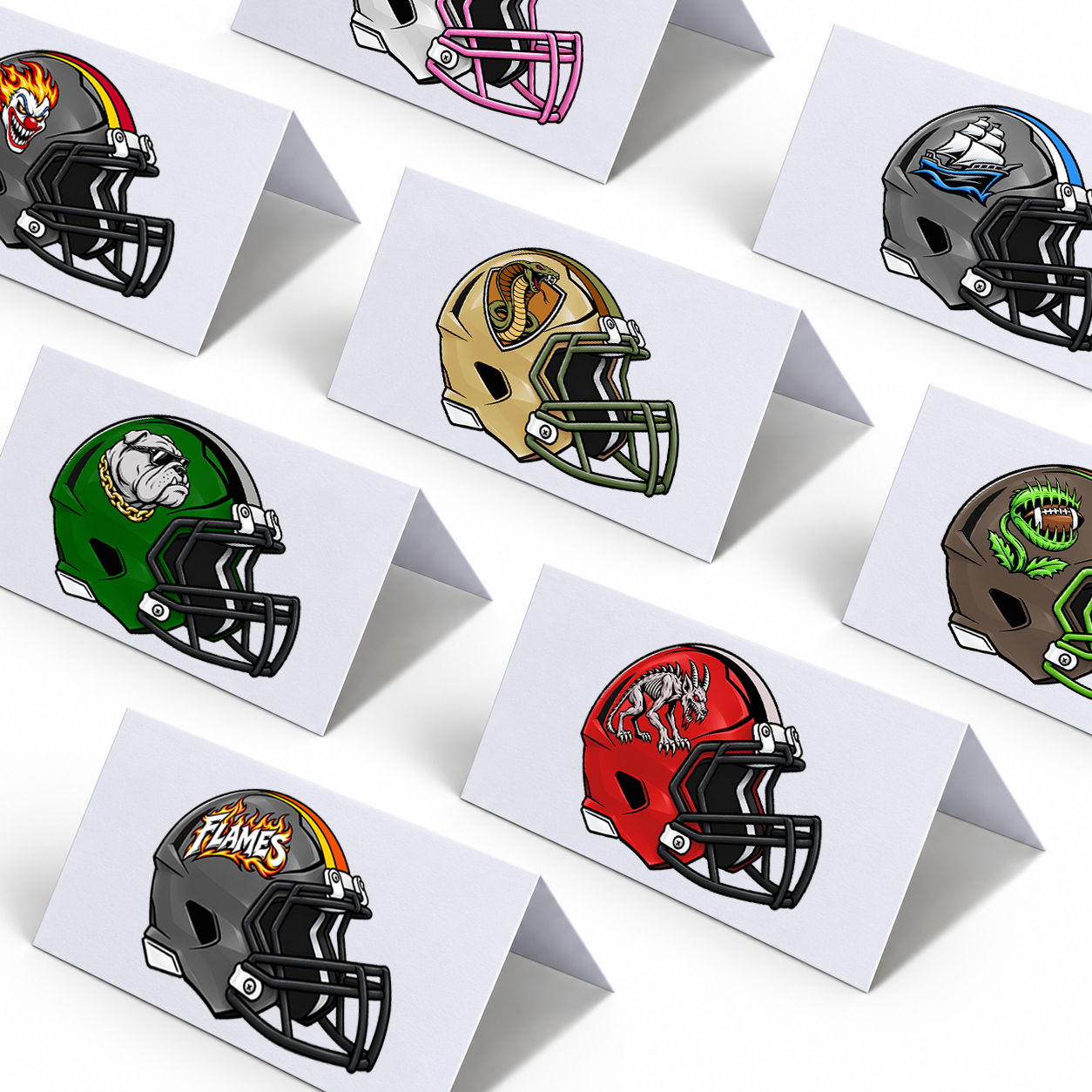
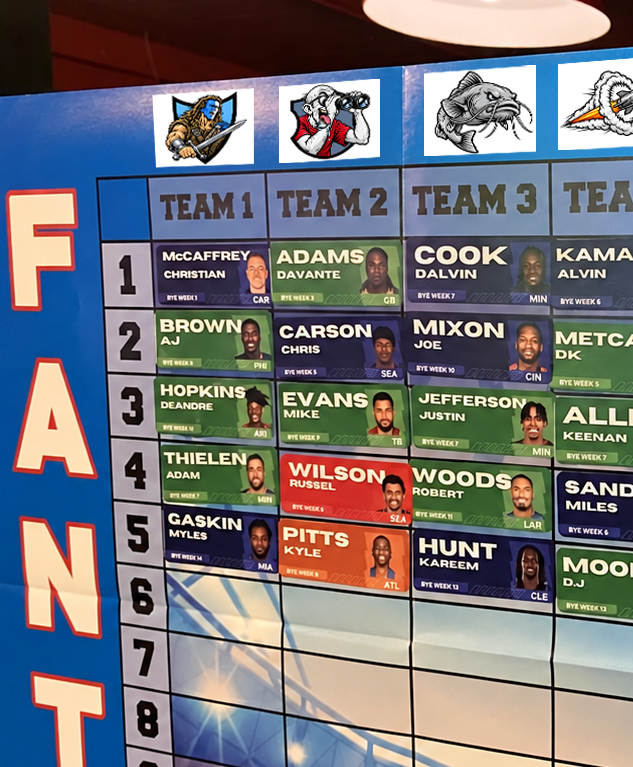
They are also great for Live Draft Day Props, like Table Tents or to add to your Draft Day Wall Posters and more.
For MyFantasyLeague.com (MFL) Users
The easiest way to use these images on MFL is to paste the image URL into the appropriate image field under Customize Franchise.
We recommend using a Logo Image or Helmet Image as your Team Icon, and a Banner Image as your Team Logo (the larger image displayed on individual team pages). MFL uses the term Icon, we call it a Logo or Helmet. MFL uses the term Logo for what we call a Banner.
For MFL Commissioners
Go to:
LEAGUE > SETUP > FRANCHISE SETUP > Customize
From there, you will see two image fields for each franchise:
-
Franchise Icon URL
-
Franchise Logo URL
For the Franchise Icon:
Click any Logo or Helmet in the Logo Library, copy the image location (URL), and paste it into the
Franchise Icon URL box.
For the Franchise Logo:
Click any Banner in the Logo Library, copy the image location (URL), and paste it into the Franchise Logo URL box.
ICON SIZING
Fantasy Sports Logos Logos and Helmets work perfectly with MyFantasyLeague and can be sized based on your league’s preference.
The original Logo and Helmet images may be larger than you want them displayed on MFL, but you can easily control their display size through Icon Setup.
To Change the Icon Size
Go to:
LEAGUE > SETUP > Icon Setup
(Located under Appearance Setup)
On the Icon Setup page, scroll down to Other Icon Attributes.
Look for: Force Icons to be:
Here you can enter the pixel size that works best for your league.
Pixel Size Recommendations
300 × 249 — May be a little large
200 × 166 — Recommended larger size
150 × 124.5
100 × 83 — Recommended smaller size
50 × 41.5 — May be a little small
Note: Logo and Helmet images are 600 × 498 pixels. If you choose a size other than the examples above, be sure to maintain the same proportions so the images display as intended.
For Individual MFL Team Owners
Go to:
MY FRANCHISE > FRANCHISE SETUP > Customize
Then follow the same instructions listed above for adding your Franchise Icon and Franchise Logo.
Note for Team Owners: Your Franchise Icon display size is controlled by your league commissioner. If an icon appears too large or too small, the league’s Icon Size settings may need to be adjusted.
That’s it — no downloading, resizing or image hosting required.
If you have any issues or questions about saving, copying, or using the logos on this website, please post them on the Suggestion Board.
CLICK THE IMAGE FOR
A LARGER VIEW